

Epic Clone adds two native actions to the Jira Automation rule builder, letting you trigger cloning directly from a rule — no REST API call or web request needed.
Clone work item
Clones a work item, together with all its children, based on a work item key.
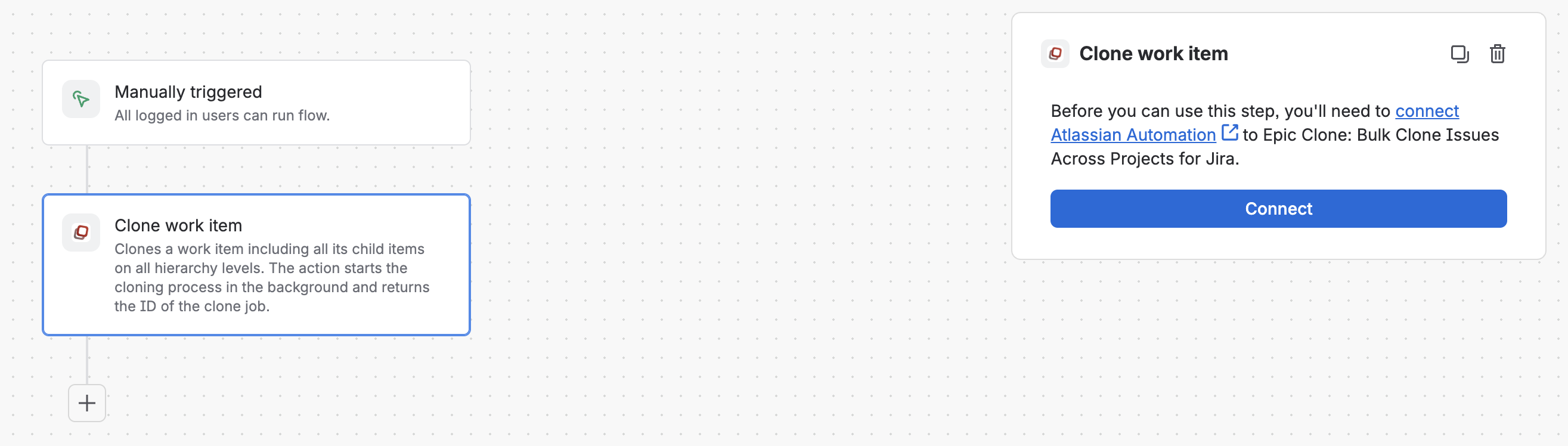
Configuration
After adding an app action to an Automation flow, you must click the connect button to establish a connection between Automation and the Epic Clone app. The person who clicks this button is the owner of the connection (relevant for app cloning permissions).
|
Field |
Description |
|---|---|
|
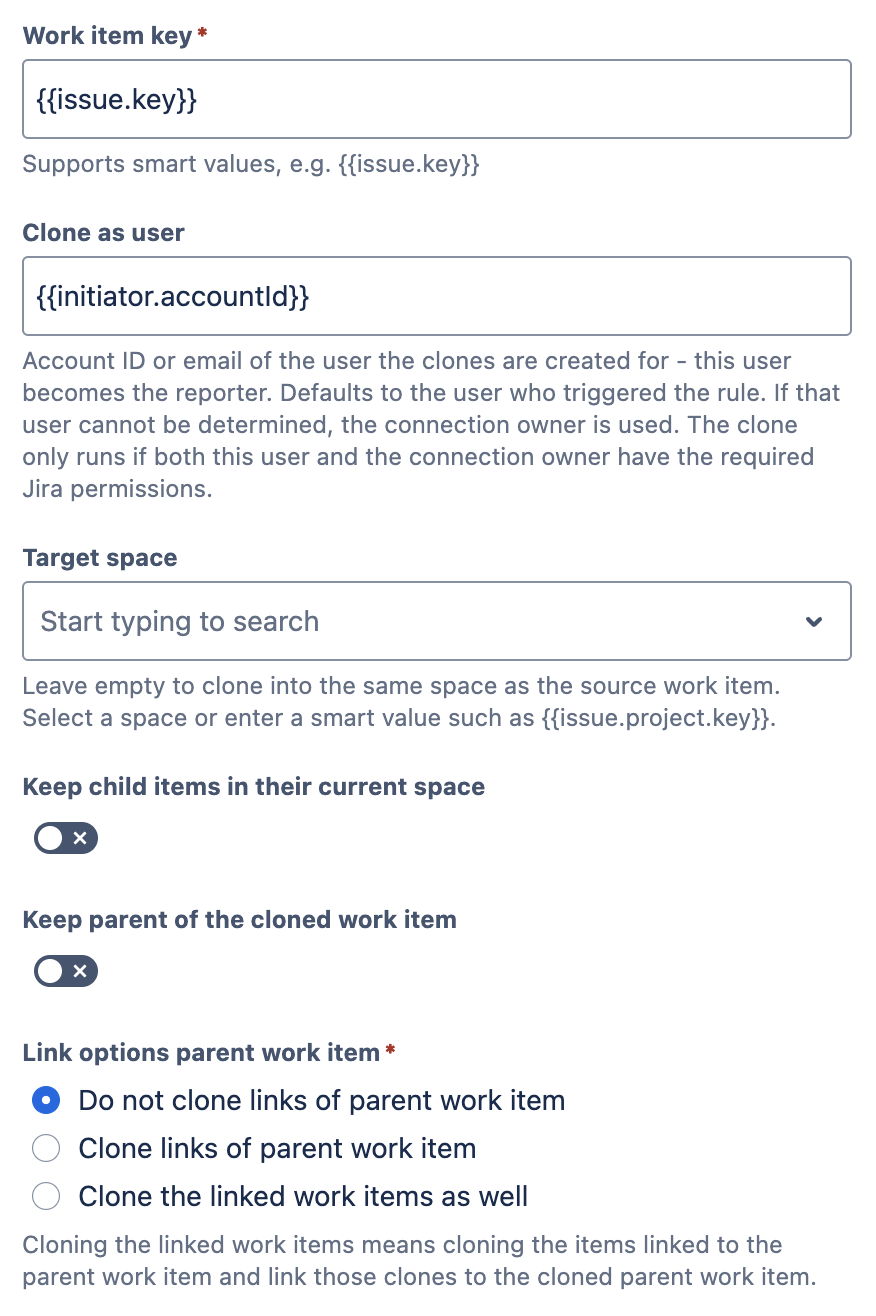
Work item key (required) |
The key of the work item to clone. Supports smart values, e.g. |
|
Clone as user |
Account ID or email of the user the clones are created for — this user becomes the reporter. Defaults to the user who triggered the rule. If that user cannot be determined, the connection owner is used. The clone only runs if both this user and the connection owner have the required Jira permissions. |
|
Target space |
Leave empty to clone into the same space as the source work item. Select a space or enter a smart value such as |
|
Keep child items in their current space |
Decide whether to retain child items in their current space. Child work items can be in a different space than the parent. If this toggle is enabled, they are cloned in their current space and not to the target space. The toggle is disabled by default. |
|
Keep parent of the cloned work item |
If the cloned parent work item should have the same parent than the source work item, this toggle must be enabled. It is disabled by default. |
|
Link options parent work item (required) |
3 options:
Cloning the linked work items means cloning the items linked to the parent work item and linking those clones to the cloned parent work item. For more details on the available link options, see Link Cloning |
|
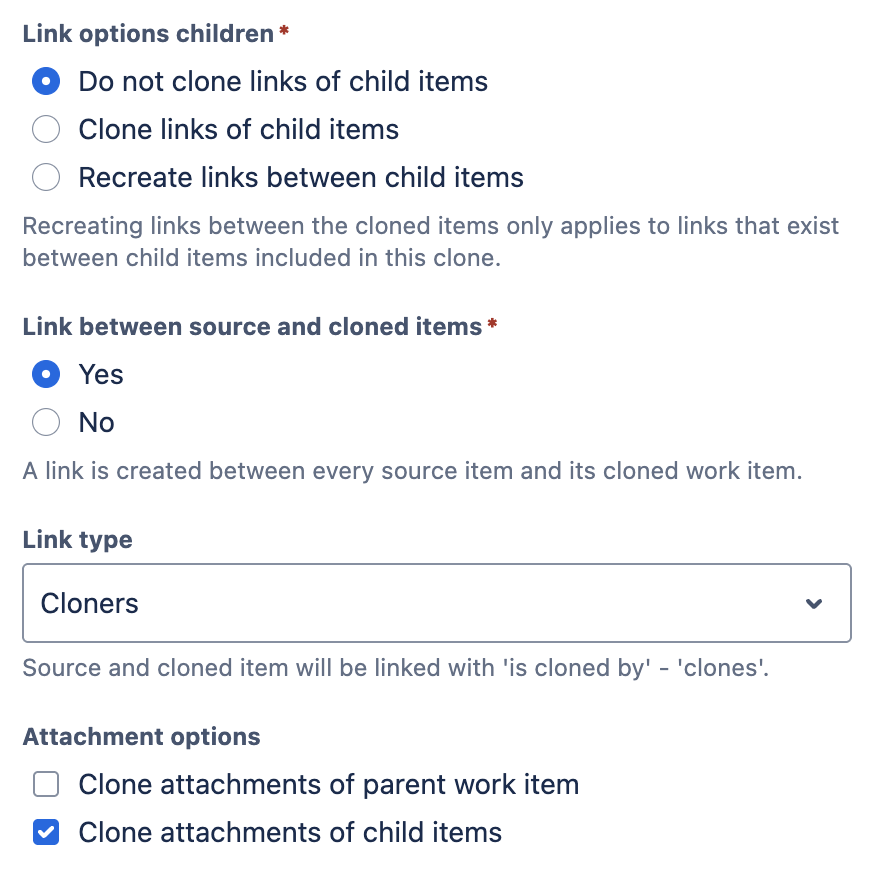
Link options children (required) |
3 options:
Recreating links between the cloned items only applies to links that exist between child items included in this clone. For more details on the available link options, see Link Cloning |
|
Link between source and cloned items (required) |
Yes / No (default No). If set to Yes, a link is created between every source item and its cloned work item. |
|
Link type |
Only visible if the previous field is set to Yes. Select the link type that should be used for links between source and cloned issues. |
|
Attachment options |
Checkboxes:
|
Example Configuration
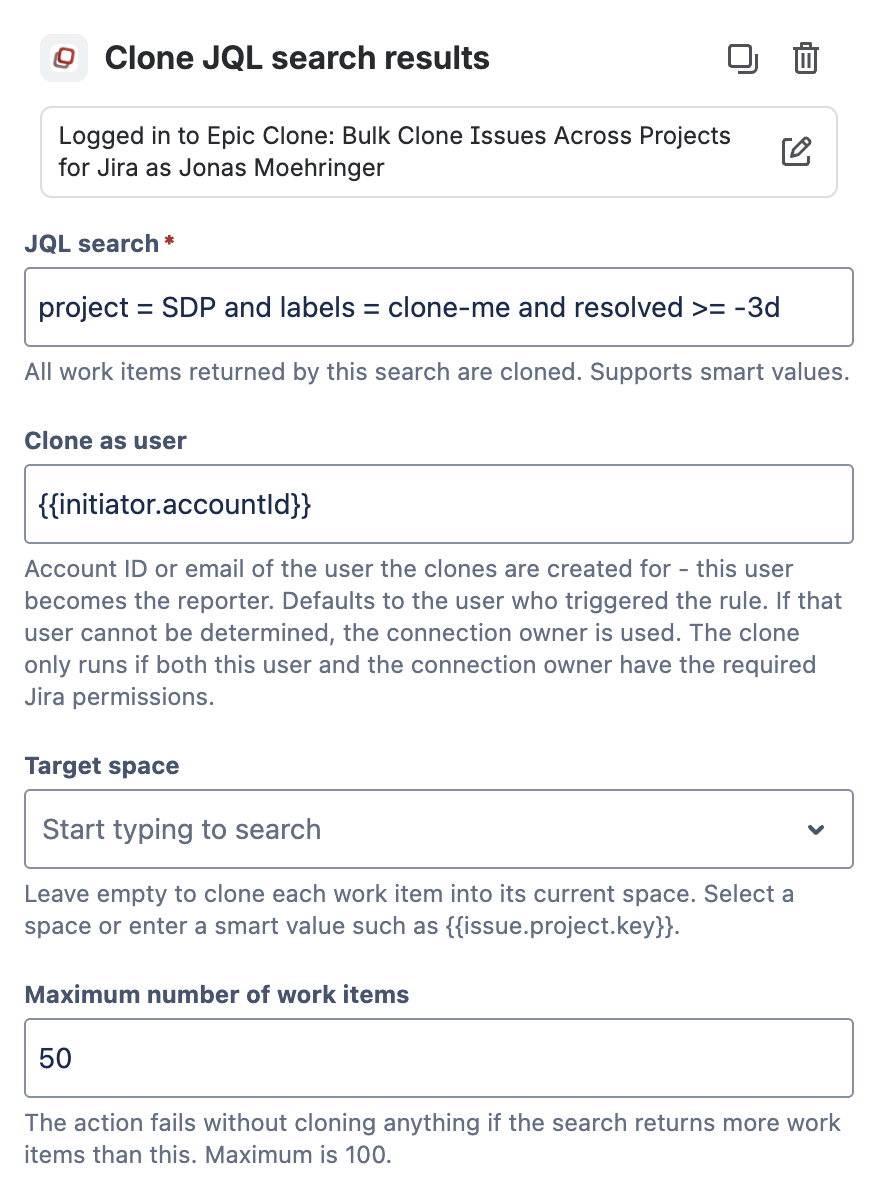
Clone JQL search results
Runs a JQL query and clones every work item returned.
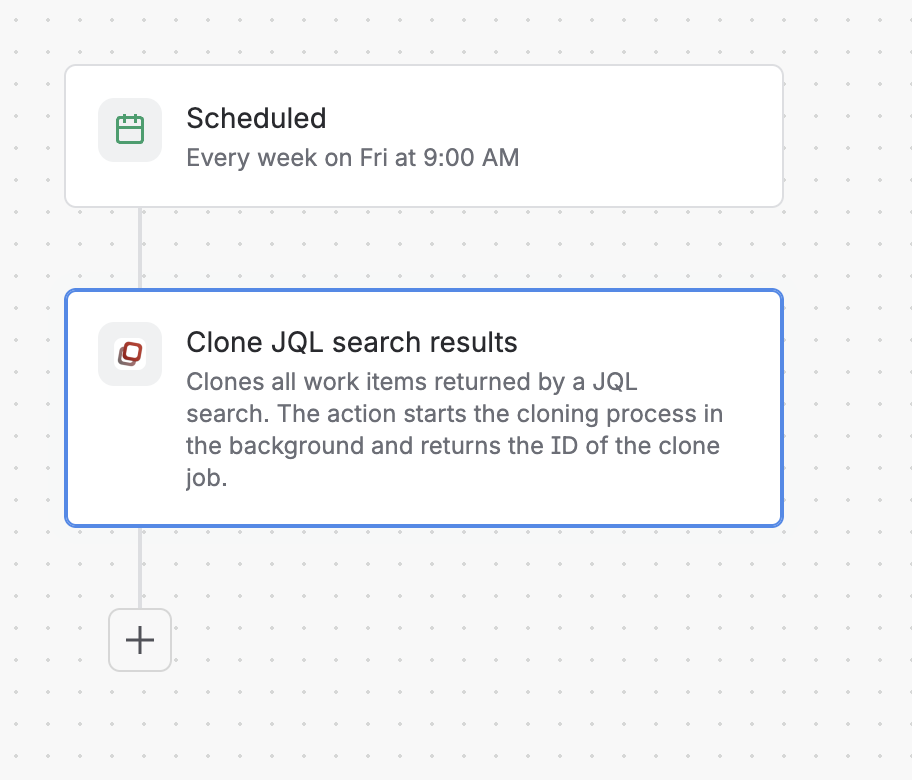
Configuration
After adding an app action to an Automation flow, you must click the connect button to establish a connection between Automation and the Epic Clone app. The person who clicks this button is the owner of the connection (relevant for app cloning permissions).
|
Field |
Description |
|---|---|
|
JQL search (required) |
e.g. All work items returned by this search are cloned. Supports smart values. |
|
Clone as user |
Account ID or email of the user the clones are created for — this user becomes the reporter. Defaults to the user who triggered the rule, falling back to the connection owner. Both need the required Jira permissions for the clone to run. |
|
Target space |
Leave empty to clone each work item into its current space. Select a space or enter a smart value such as |
|
Maximum number of work items |
Default 50, maximum 100. The action fails without cloning anything if the search returns more work items than this value. |
|
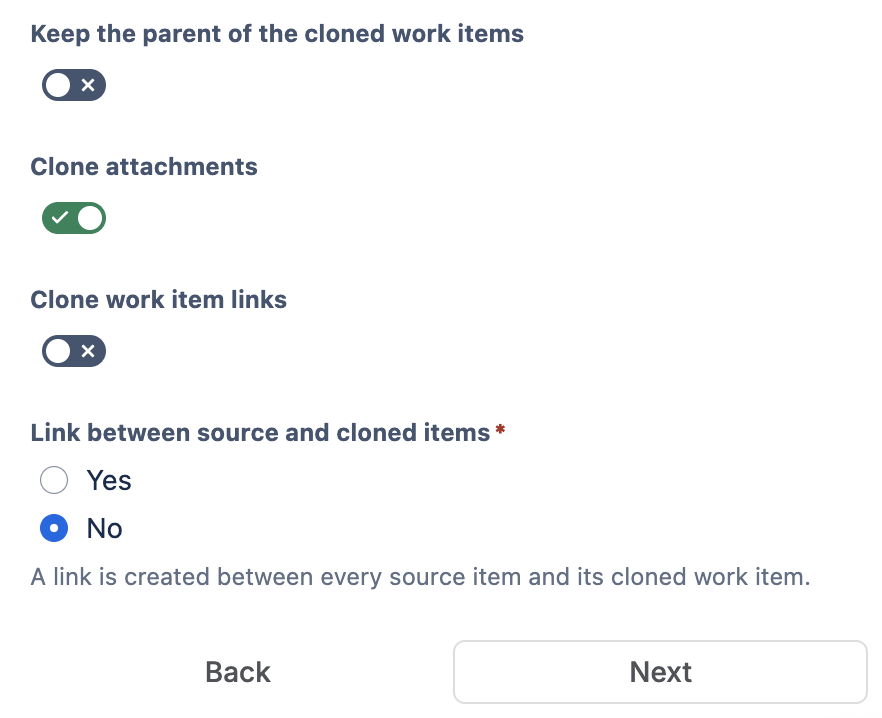
Keep the parent of the cloned work items |
If the cloned parent work item should have the same parent than the source work item, this toggle must be enabled. It is disabled by default. |
|
Clone attachments |
Decide whether to clone item attachments or not. Disabled by default. |
|
Clone work item links |
Decide whether to clone item links or not. Disabled by default. |
|
Link between source and cloned items (required) |
Yes (default) / No. A link is created between every source item and its cloned work item. |
|
Link type |
Yes / No (default No). If set to Yes, a link is created between every source item and its cloned work item. |
Example Configuration
Use cases
For example use cases combining these two actions, see Automation Actions Use Cases.
See also
For automation via the REST API instead of these native actions, see Epic Clone API.