

Opening the Bulk Clone dialog from the item navigator lets you clone all items returned by your JQL search. For detailed configuration options, see the information on this page.
Target Space Selection
-
Default: All items are cloned within their current space.
-
Cross-Space Cloning: Check the box to select a new target space for all the items.
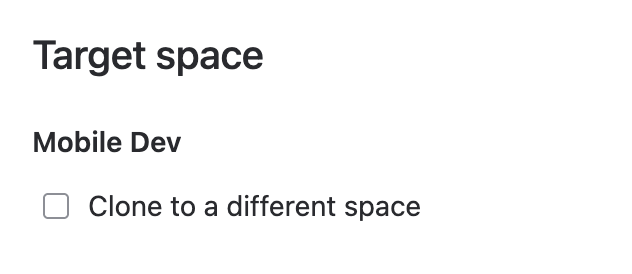


Please note that only accessible spaces are shown.
Keep in Source Space
This option applies only when cloning items to a different space.
-
Option: Clone child items within their original space or move them to the selected target space.
-
Default: All items copy to the target space.
Work items
Settings
You can apply the following general settings to the work items list.

Links
Link between source and cloned items
-
Enable: Establish a link similar to "clones / is cloned by" in Jira.
-
Dropdown: Choose the link type for cloned items.
Internal links
-
Internal links connect two items within the search
-
Decide whether to recreate them (item 1 linked to item 2 results in cloned item 1 linked to cloned item 2)
Labels
Select labels to be set on all cloned items
Modify Work Item Summaries
-
Find and Replace: Search and replace terms in child item summaries.
-
Prefix/Suffix: Add to summaries for customization.
Work Item Table
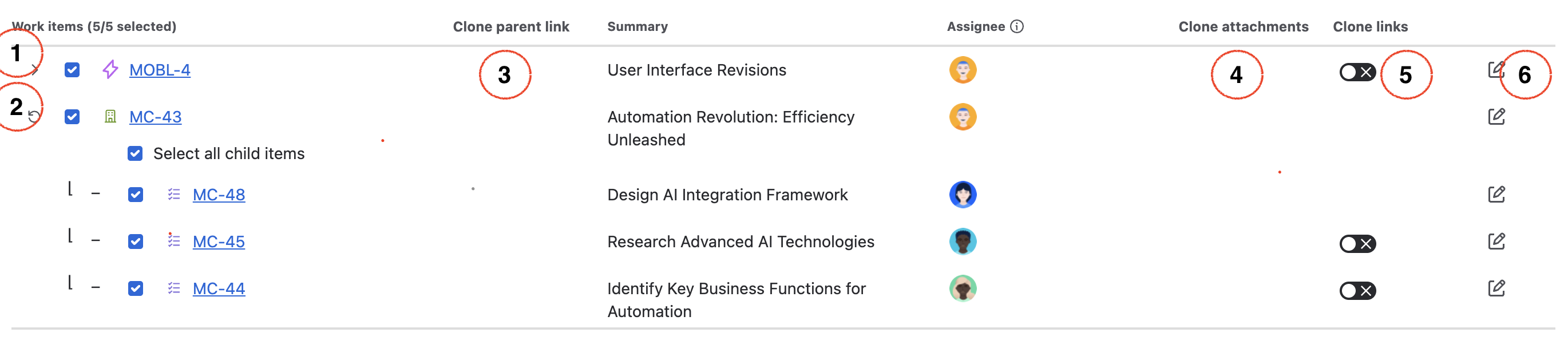
The work item table displays up to 50 items from your JQL. To see more, click the load more button at the table's bottom. Items appear in the correct hierarchy. For example, the JQL search returns MC-43, MC-44, MC-45, and MC-48. MC-44, MC-45, and MC-48 are child items under MC-43 and display accordingly.
-
In the example, work item MOBL-4 has child items. Click the expand icon to load, display, and clone all child items, even if they fall outside the initial JQL scope.
-
MC-43 has more child items than the three shown in the JQL. Click the load more children icon to display all child items in the table.
-
Parent Link: Option to replicate the parent link if one exists (only available for the top level items).
-
Clone Attachments:
-
option to clone if permissions allow
-
default is to clone
-
not displayed if no attachments or lacking permission in target space
-
-
Clone links: Option to clone the work item links
-
Edit: Click this icon to open the edit mode for summary and assignee fields
Reorder
-
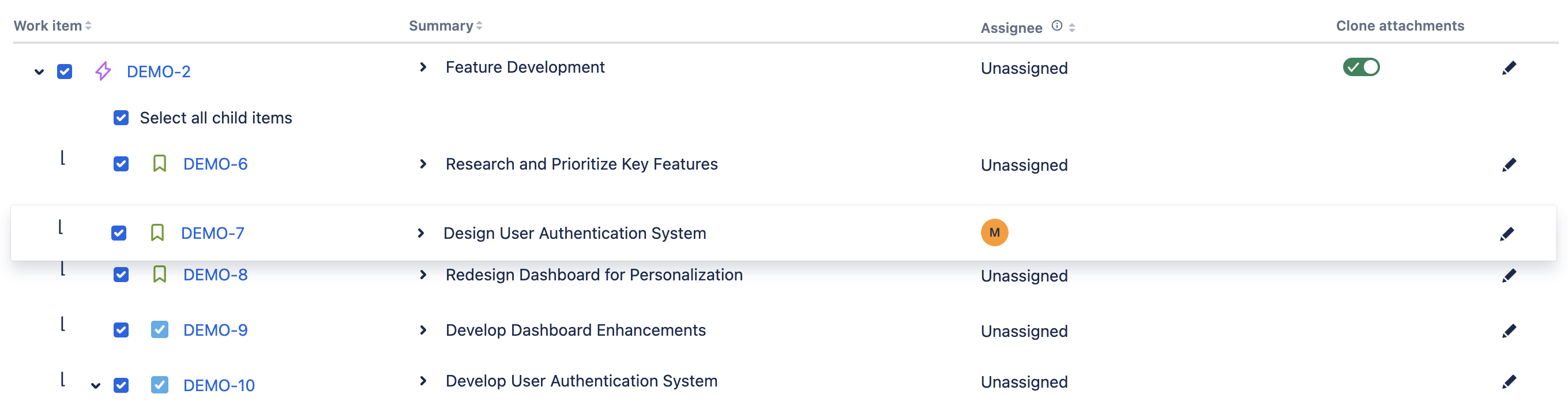
Drag-and-Drop: Rearrange child items to define a new order.
-
Modify Hierarchy: Easily change child items parents in the list with drag-and-drop.
-
Error Handling: Invalid positions trigger error messages.
-
Reordering top-level items isn’t possible
If you have finished your settings, click on ‘Clone’ to start the cloning. See this page for information on the result screen.