

User Absence Planner for Jira Cloud supports Jira Automation actions that allow you to manage absences directly within your automation rules. This enables you to automate absence management workflows without writing custom code or using the REST API directly.
Known Limitation: Custom Domains
The automation actions are currently not working on Jira instances with a custom domain (i.e. instances with a different url than *.atlassian.net). This is a known technical limitation. If your instance uses a custom domain, please check back for updates as we are working to resolve this.
Smart Values
All automation actions support Jira smart values, allowing you to dynamically reference issue or user data in your action inputs. For example:
-
{{issue.assignee.accountId}}— the account ID of the issue's assignee -
{{issue.assignee.emailAddress}}— the email address of the issue's assignee -
{{issue.reporter.emailAddress}}— the email address of the issue's reporter
Accessing Smart Values for Action Outcomes
Actions like Check User Availability and Get Absences for User return data that can be used in subsequent steps of your automation rule via smart values. To find the correct smart value format for an action's output:
-
Open your automation rule in the Jira Automation editor
-
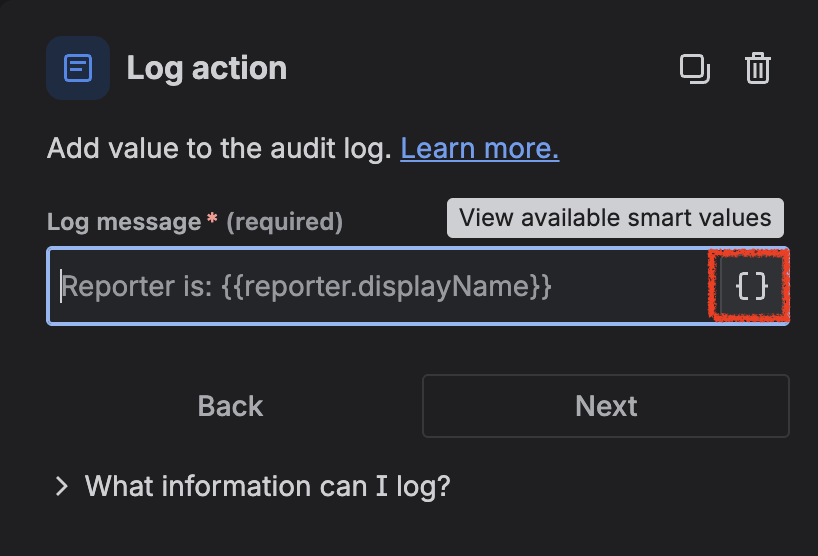
Add a log action component (i.e. after the User Absence Planner action)
-
Click on the available smart values icon
-
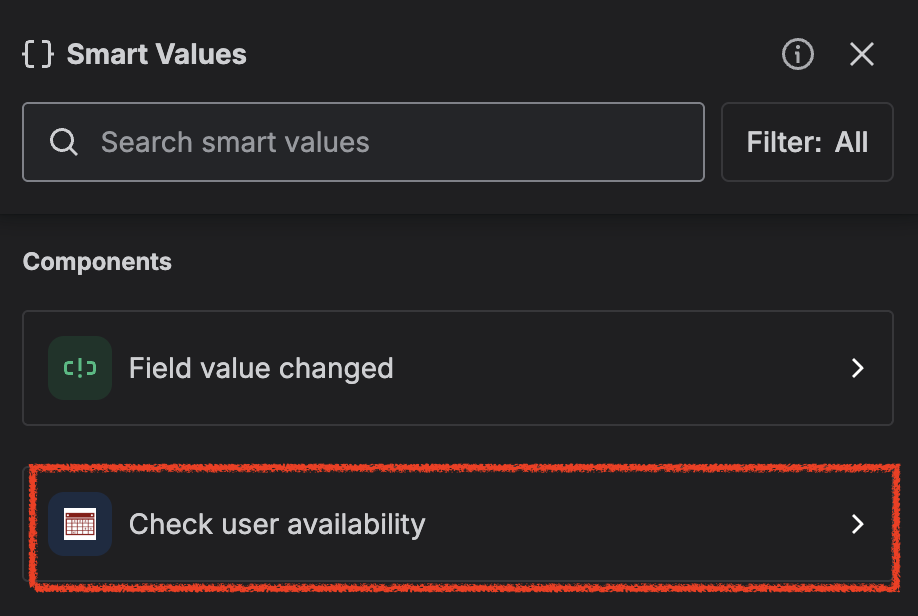
Click on the User Absence Planner action you have added to the rule
-
The smart values available for that action's output will be listed there with their exact format
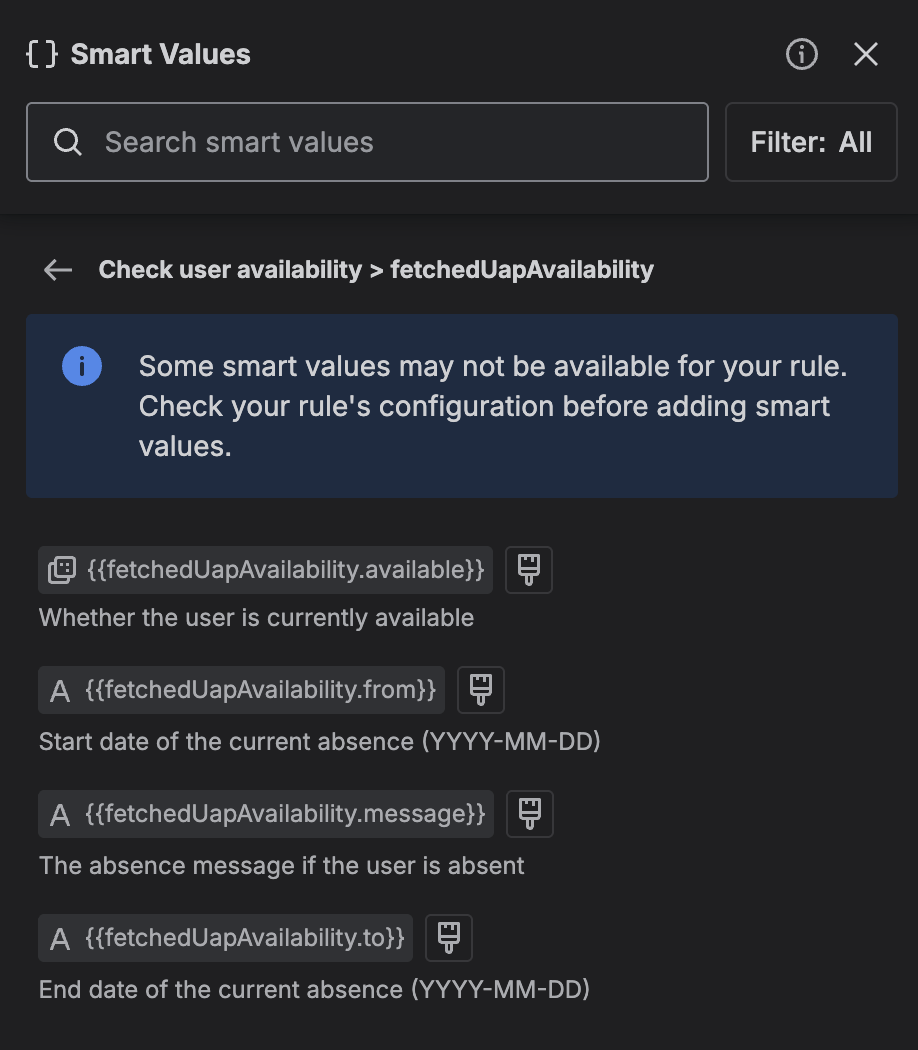
This is the easiest way to discover the available output smart values for each action.
User Parameter
For all automation actions, the User parameter accepts either:
-
The user's email address (e.g.
jane.doe@example.com) -
The user's Atlassian account ID (e.g.
5b10a2844c20165700ade21g)
You can use a smart value for this parameter, such as {{issue.assignee.emailAddress}} or {{issue.assignee.accountId}}.
Available Automation Actions
The following automation actions are available:
1. Create Absence
Creates a new absence entry for a specified user.
Action name: Create absence
Input fields:
|
Field |
Required |
Description |
|---|---|---|
|
User |
Yes |
The user for whom the absence should be created (email address or account ID) |
|
Title |
Yes |
A descriptive title for the absence |
|
Type |
Yes |
The absence type (e.g. Holiday, Sickness, Business trip) |
|
Start date |
Yes |
The start date of the absence (format: YYYY-MM-DD) |
|
End date |
Yes |
The end date of the absence (format: YYYY-MM-DD) |
|
Message |
No |
An optional out-of-office message visible to other users |
Smart values are supported for all fields.
Output: The id of the created absence
Use case example: Automatically create an absence in Jira when a new approved leave request is created in your HR system or project.
2. Edit Absence
Edits an existing absence entry for a specified user.
Action name: Edit absence
Input fields:
|
Field |
Required |
Description |
|---|---|---|
|
User |
Yes |
The user whose absence should be edited (email address or account ID) |
|
Absence ID |
Yes |
The ID of the absence to be updated |
|
Title |
No |
Updated title for the absence |
|
Type |
No |
Updated absence type |
|
Start date |
No |
Updated start date (format: YYYY-MM-DD) |
|
End date |
No |
Updated end date (format: YYYY-MM-DD) |
|
Message |
No |
Updated out-of-office message |
Only the fields provided will be updated; all other fields remain unchanged. Smart values are supported for all fields.
Use case example: Automatically update an absence end date when a leave request is extended.
3. Delete Absence
Deletes an existing absence entry for a specified user.
Action name: Delete absence
Input fields:
|
Field |
Required |
Description |
|---|---|---|
|
User |
Yes |
The user whose absence should be deleted (email address or account ID) |
|
Absence ID |
Yes |
The ID of the absence to be deleted |
Use case example: Automatically remove an absence when a leave request is cancelled or rejected.
4. Check User Availability
Checks whether a specified user is currently available or out of office.
Action name: Check user availability
Input fields:
|
Field |
Required |
Description |
|---|---|---|
|
User |
Yes |
The user whose availability should be checked (email address or account ID) |
Output: Returns the following information, which can be referenced via smart values in subsequent steps of your rule:
-
Availability state — whether the user is currently available (
true) or out of office (false) -
Start date — the start date of the current absence, if the user is out of office
-
End date — the end date of the current absence, if the user is out of office
-
Message — the absence message, if the user is out of office and a message has been set
To find the exact smart value format for these outputs, refer to the Accessing Smart Values for Action Outcomes section above.
Use case example: Check if an assignee is available before assigning an issue to them, and route to an alternate user if they are absent.
5. Get Absences for User
Retrieves all absences for a specified user.
Action name: Get absences for user
Input fields:
|
Field |
Required |
Description |
|---|---|---|
|
User |
Yes |
The user whose absences should be retrieved (email address or account ID) |
Output: Returns a list of absence objects for the user, each containing the absence ID, title, type, start date, end date, and message. The returned data can be referenced via smart values in subsequent steps of your automation rule.
To find the exact smart value format for these outputs, refer to the Accessing Smart Values for Action Outcomes section above.
Use case example: Retrieve a user's planned absences and include them in a notification or report generated by your automation rule.
Notes
-
The automation actions are currently not available on instances with a custom domain. See the notice at the top of this page for details.
-
All automation actions require the User Absence Planner app to be installed. The user who set up the connection to the User Absence Planner app within the automation rule must have the necessary permissions within the app — note that this is not necessarily the user who triggers the rule at runtime.
-
Absence types used in the Create Absence and Edit Absence actions must match the types configured in your instance. See User Absence Planner Admin Settings for details on managing absence types.
-
For programmatic access outside of Jira Automation, refer to the API Documentation.